





Hitachi Remote TV Guide: Programming, Codes & App Fixes (2026 Update)
Losing access to your TV controls is frustrating. Whether your remote is lost, broken, or simply refusing to pair, you need a solution fast. In 2026, the landscape of television control has shifted, with Universal Remote Controls now valued at over $4.52 billion globally as users seek unified solutions for their smart homes. This guide covers everything from legacy infrared (IR) programming to modern Hitachi TV remote app for Android and iPhone connectivity.
What is the Hitachi Remote TV and How Does It Work?
A Hitachi TV remote is a handheld input device that typically uses infrared (IR) light pulses or Bluetooth signals to send commands like power, volume, and channel selection to your television.
While most older models rely strictly on Line-of-Sight (LoS) infrared technology—meaning you must point the remote directly at the TV sensor—newer 2026 smart models utilize Bluetooth Low Energy (BLE) or Wi-Fi. This shift allows for control without direct pointing and enables advanced features like voice commands.
- Infrared (IR): The standard for 90% of legacy Hitachi TVs. Requires a clear path between the remote and the TV's receiver.
- Bluetooth/RF: Found in modern Smart TVs, allowing control through walls or obstacles.
- App-Based Control: Uses your home Wi-Fi network to turn your smartphone into a virtual remote.
Step-by-Step Guide to Programming Your Hitachi Remote TV
To program your remote, switch it to "TV Mode," hold the "Setup" button until the indicator light flashes, and enter the specific manufacturer code for your Hitachi model.
Programming a universal remote ensures you can control your Hitachi TV alongside other devices like soundbars or cable boxes. If you do not have the exact code, many remotes offer an "Auto-Search" feature that cycles through common frequencies until the device responds.
Common Programming Methods:
- Direct Code Entry: The fastest method. Input the 4-digit code found in your manual.
- Auto-Search Mode: Useful if you don't know the code. The remote scans its database until the TV turns off.
- Learning Mode: High-end remotes, such as those manufactured by Guangzhou SYSTO International Trading Limited, feature "learning" capabilities. These allow you to point your original remote at the new one to copy specific button functions directly.
Common Hitachi Remote TV Codes and How to Use Them
The most frequently used universal remote codes for Hitachi TV are 1004, 1011, 0145, and 1145, though the exact code depends on whether you are using a GE, RCA, or generic universal remote.

Finding the correct universal remote codes for Hitachi TV is the critical first step in setup. If the first code doesn't work, proceed down the list until your TV responds to volume or power commands.
Code List by Remote Brand:
- GE Universal Remotes: 5091, 5131, 0054, 0145
- RCA Remotes: 1004, 1011, 1051, 1145
- One For All: 0145, 1643
- Generic 4-Digit Codes: 0001, 0054, 0111, 1052
How to Sync Your Hitachi Remote TV with Various Devices
Syncing requires entering "Device Mode" (e.g., DVD, AUX) on your remote, holding the setup button, and entering the specific code for the external device you wish to control.
Modern entertainment centers often involve a soundbar, streaming stick, or gaming console. Syncing your Hitachi remote to these devices reduces coffee table clutter.
Syncing Steps:
- Select Device: Press the button corresponding to the device (e.g., "AUX" for a soundbar).
- Enter Setup: Hold "Setup" until the LED blinks twice.
- Input Code: Enter the device's manufacturer code.
- Test Power: Press the power button to verify connectivity.
Troubleshooting Common Hitachi Remote TV Issues and Fixes
The most effective troubleshooting step is the "Camera Test": point your remote at your smartphone camera and press a button; if you see a purple flash on your screen, the remote is sending a signal.
If the remote is sending a signal but the TV isn't responding, the issue likely lies with the TV's sensor or interference. Hitachi TV remote sensor troubleshooting involves clearing physical obstructions and ensuring no bright lights (like sunlight or fluorescent bulbs) are blinding the receiver.
Quick Fix Checklist:
- Battery Check: Replace old batteries. Low voltage causes erratic signals.
- Power Cycle: Unplug your TV for 60 seconds to reset the mainboard drivers.
- Clean the Board: If buttons are sticky, disassemble the remote and clean the rubber membrane with isopropyl alcohol.
- Check Interference: Move objects blocking the bottom bezel of the TV.
2026 Updates: New Features and Improvements in Hitachi Remote TV
The 2026 Hitachi remote lineup focuses on "Voice-First" navigation and Bluetooth 5.3 connectivity, offering faster pairing speeds and reduced input lag compared to older IR models.
As the industry shifts toward smart home integration, Guangzhou SYSTO International Trading Limited has observed a surge in demand for remotes that support both legacy IR and modern Bluetooth protocols. This ensures compatibility across decades of TV models.
New 2026 Capabilities:
- Smart Home Linking: Control lights and thermostats directly from the TV remote.
- One-Touch Streaming: Dedicated buttons for Netflix, Disney+, and YouTube are now standard.
- Hybrid Connectivity: Remotes that switch automatically between IR (for power) and Bluetooth (for voice search).
Hitachi Remote TV App: How to Set It Up and Use It Efficiently
To set up the app, download the official Hitachi Smart Remote or a third-party IR blaster app, ensure your phone and TV are on the same Wi-Fi network, and follow the on-screen pairing prompt.
With the smart TV app market valued at nearly $50 billion globally, apps are a reliable backup. The Hitachi TV remote app for Android and iPhone allows you to type searches using your phone's keyboard, which is significantly faster than on-screen navigation.
App Setup Guide:
- Download: Search specifically for "Hitachi SmartVue" or "Google TV" app depending on your OS.
- Network: Verify that your phone is not on 5G/4G data; it must be on the same Wi-Fi SSID as the TV.
- Pairing: Open the app and select your TV from the device list. A PIN code may appear on your TV screen for verification.
What to Do When Your Hitachi Remote TV Stops Working
If a hard reset and battery replacement fail, you should purchase a dedicated Hitachi smart TV remote replacement rather than a generic universal remote to ensure full access to smart menu functions.
While generic remotes control volume and power, they often lack specific buttons for "Smart Hub" or "Settings." For those needing a high-quality replacement, companies like SYSTO specialize in manufacturing OEM-grade replacements that match the durability and layout of the original. With over 20 years of experience exporting to Japan and Europe, SYSTO provides reliable controllers that often outlast the originals.
When to Replace:
- Physical Damage: Cracked casing or rattled components.
- Corrosion: Leaking batteries have damaged the contacts.
- Dead Buttons: Frequently used buttons (Power/Volume) no longer register presses.
FAQs
1. How do I find the 4-digit code for my Hitachi TV? The most common codes are 1004, 1011, 0145, and 1145. Consult your universal remote's manual or use the "Code Search" feature if these fail.
2. How to program Hitachi remote without codes? You can learn how to program Hitachi remote without codes by using the Auto-Search method: Hold the "Setup" button, then repeatedly press "Channel Up" until the TV turns off, then press "Enter" to save.
3. Why is my Hitachi TV not responding to the remote? This is usually due to dead batteries or sensor obstruction. Perform the "Camera Test" to see if the remote is emitting IR light. If it is, the issue is likely the TV sensor.
4. Can I use my phone as a remote? Yes, you can use the Hitachi TV remote app for Android and iPhone. For older non-smart TVs, you can use an Android phone with a built-in IR Blaster.
5. Where is the reset button on a Hitachi remote? Most units do not have a dedicated button. To reset, remove the batteries and hold the power button down for 30 seconds to drain residual electricity.
6. Will a GE universal remote work with Hitachi? Yes, GE remotes are highly compatible. Try codes 5091 or 5131 for instant pairing.
7. How do I pair a Bluetooth Hitachi remote? Navigate to Settings > Remotes & Accessories > Add Accessory. Hold the specific pairing buttons (often "Home" and "Back" together) until the light pulses.
8. What if my remote buttons are sticky? This is caused by oil or debris. Disassemble the remote and wash the rubber keypad with warm soapy water. ensure it is 100% dry before reassembly.
References
AKB75095308
Can I customize this remote with my own brand logo?
Yes, we provide OEM/ODM customization for brand owners and distributors.
KS-DK02V
Does the KS-DK02V work with all Daikin air conditioners?
It’s compatible with most Daikin models. If not working directly, you can use the auto-search setup mode to pair it easily.
CRC2201V
Can I buy in small quantities?
Yes. We support small MOQ for regular models; OEM MOQ depends on customization needs.
About Company
What’s your mission or vision?
To provide smart, reliable, and affordable control solutions for every household.
What are your main product categories?
TV remotes, air conditioner remotes, universal remotes, thermostats, control boards, condensate pumps, and more.
Recommended For You
The CRC2621V AI Universal Air Conditioner Remote is designed for the Southeast Asian market. With an AI search function and compatibility with 99% of air conditioner brands, it provides faster setup and a better user experience.
Infrared LED light remote for Panasonic Japan market. No setup required. Supports dimming, color adjustment, timer, and 3-channel switching.
Do solar remote controls still use lithium batteries? Learn how modern solar-powered remotes now adopt supercapacitors with USB Type-C fast charging for improved safety, durability, and long lifespan.
Learn how to check whether a garage door remote control bought online is compatible with your opener. Frequency, learning type, and easy tips explained.
Having trouble setting up a universal remote even though your TV brand is listed in the manual? Learn the real reason, common mistakes, and how to improve success by using precise TV codes.
You May Also Like
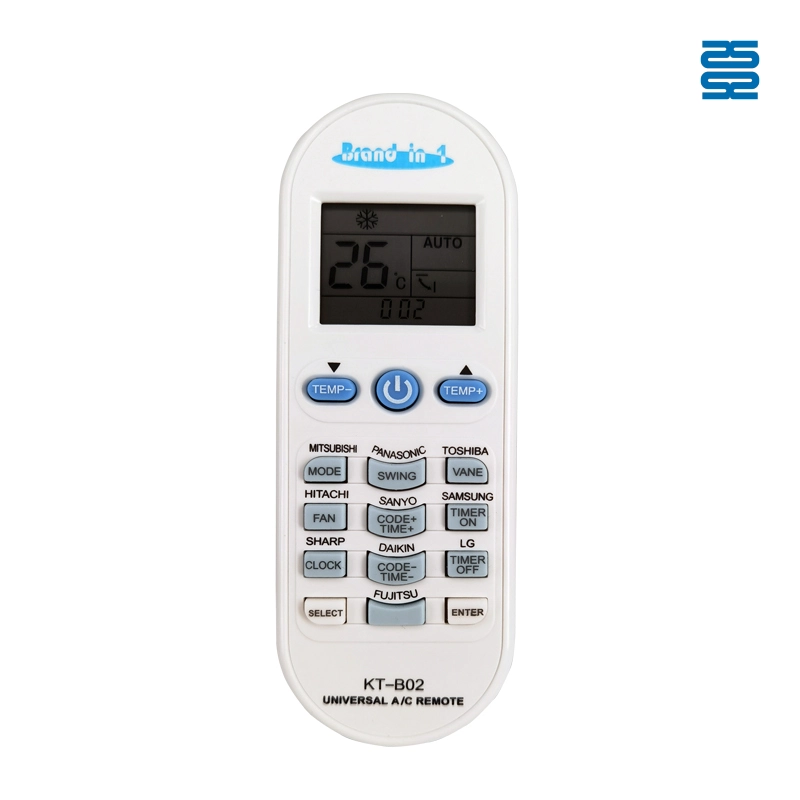
KT-B02 Universal Air Conditioner Remote Control Compatible with All Brands
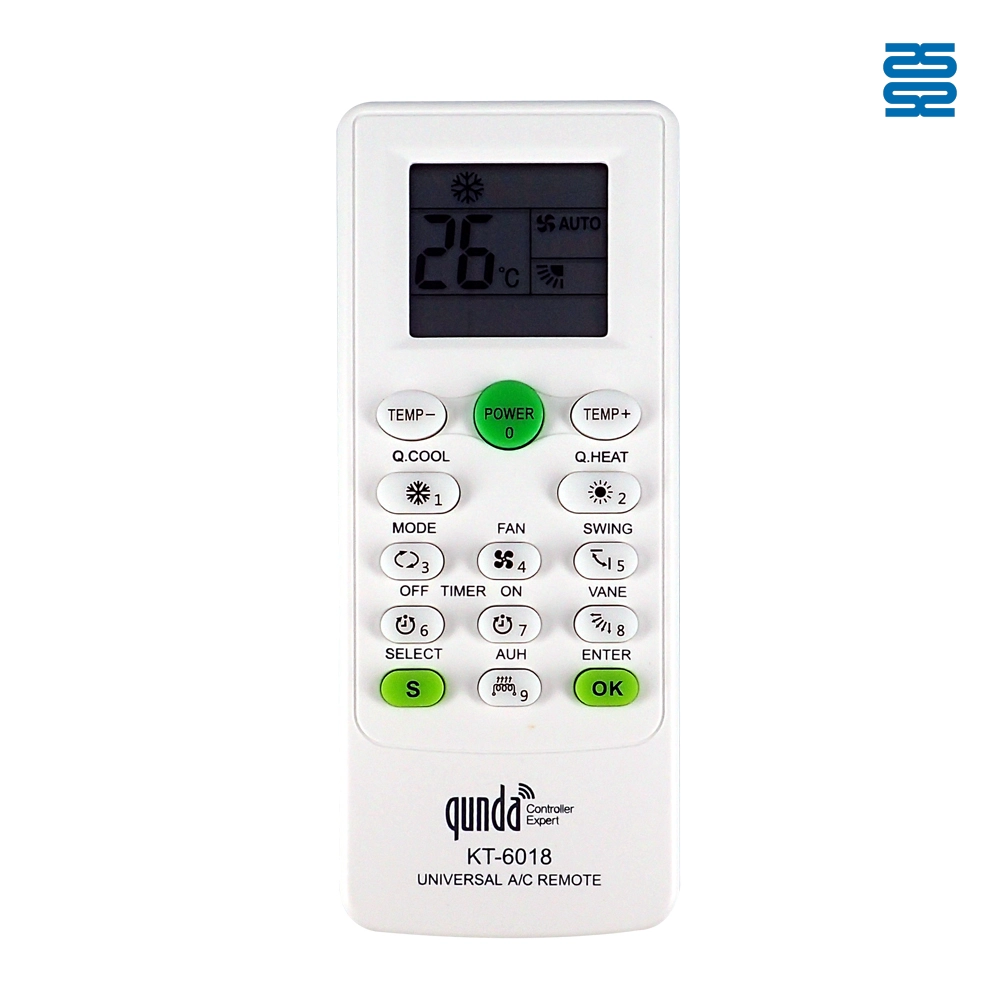
KT-6018 6000 in 1 Universal Air Conditioner Remote Control Compatible with All Brands

QD-1000 IN 1 1000 Code in 1 Universal Air Conditioner Remote Control Compatible with All Brands

KT-N828 Universal Air Conditioner Remote Control Compatible with All Brands
◼ Let’s Build Together
Get in Touch with SYSTO
If you have any comments or good suggestions, please leave us a message, later our professional staff will contact you as soon as possible.


Contact
Email us
Text or Call us
Address
Room 1606, No. 65, Zhongshan Seven Road, Liwan District, Guangzhou, Guangdong, China.
Facebook
Instagram
YouTube
Tik Tok
VK